
Chat History
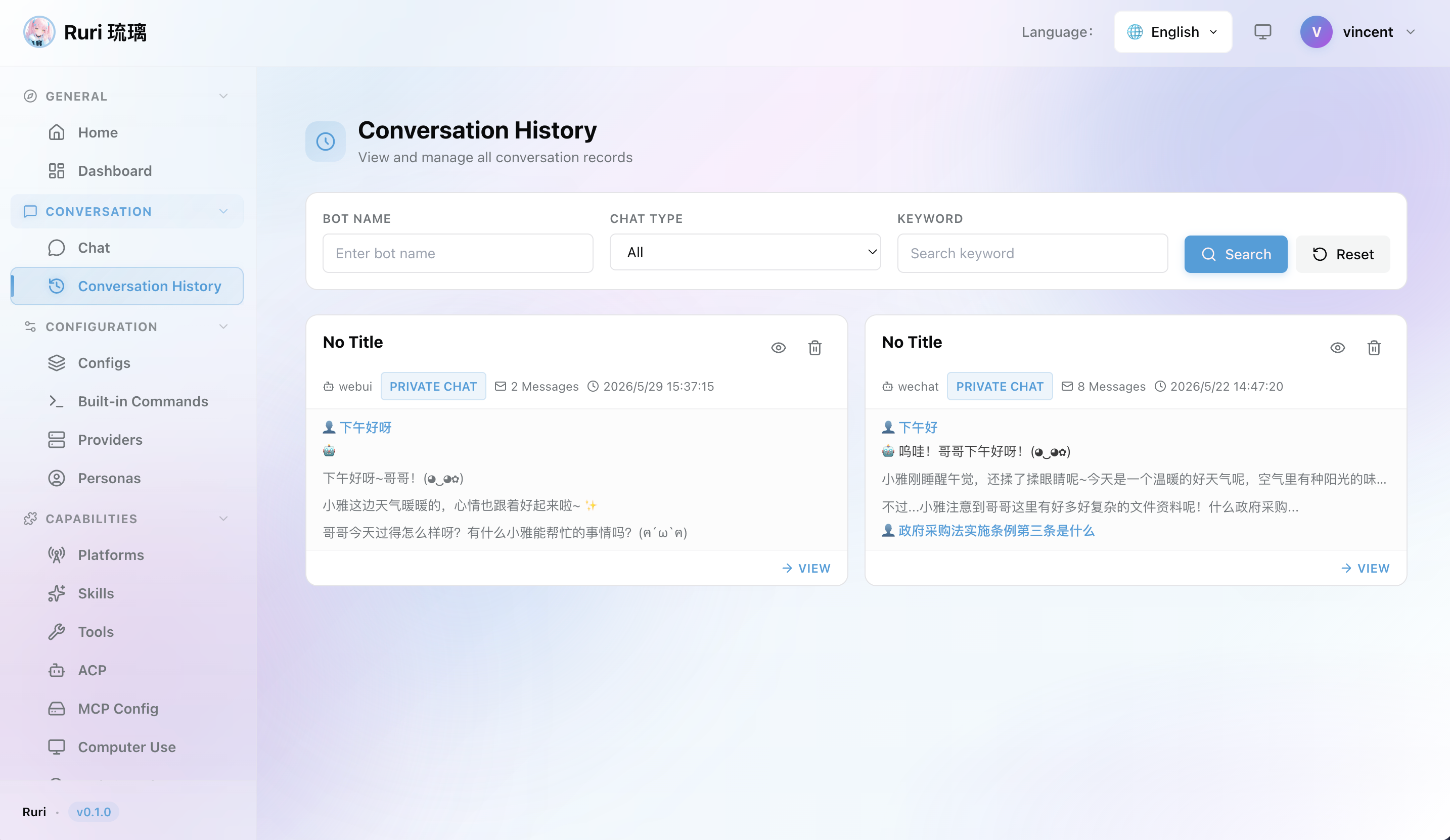
Chat History lets you browse, search, and review all conversations between your bots and users. Every message sent and received is automatically stored, so you can look back at any conversation, check what the AI said, and trace how issues were resolved.
What is Chat History?
Ruri automatically saves every conversation between bots and chat participants to the database. Each conversation contains a complete message history, including user messages, AI replies, system messages, and tool call results. Through the Chat History page in the Web UI, you can:
- 📋 Browse conversations — View all conversations that bots have participated in
- 🔍 Filter conversations — Quickly locate conversations by bot name, chat type, or keyword
- 👁️ View details — Open any conversation to see the full message history with Markdown rendering
- 🗑️ Delete conversations — Clean up conversation records you no longer need
Beyond browsing, Chat History also helps you:
- Review past conversations — Look up what was discussed in any chat, at any time
- Debug AI responses — Trace the full message flow to understand why the AI gave a particular answer
- Filter and search — Quickly find conversations by bot name, chat type, or keyword
- Audit and compliance — Keep a persistent record of all interactions
Viewing Conversations
The Chat History page in the Web UI displays all conversations in a card-based layout. Each conversation card shows:
- Title — The conversation title (or "No Title" if unset)
- Bot name — Which bot handled the conversation
- Chat type — Whether it was a group or private chat
- Message count — How many messages the conversation contains
- Preview — The first 3 non-system messages, giving you a quick glimpse of the conversation content
- Last updated — When the conversation was last active
Preview messages are visually distinguished by role, helping you quickly understand the conversation context.
Filtering Conversations
The Chat History page provides three filter conditions to help you quickly find target conversations from a large list:
| Filter | Description |
|---|---|
| Bot Name | Filter by bot name; type a name for fuzzy matching |
| Chat Type | Select "Group" or "Private" to view conversations of that type |
| Keyword | Search conversation titles and chat IDs for a matching keyword |
After setting your filters, click the Search button (or press Enter) to apply them. Click Reset to clear all filters and show every conversation.
Detail Panel
Click the 👁️ icon on a conversation card or the "View all messages" link at the bottom of the card to open the detail panel and see the full conversation.
Detail panel features:
- 📜 Full message history — Displays all messages in the conversation, ordered chronologically
- 🎨 Markdown rendering — Markdown content in AI replies is rendered in real-time, supporting code blocks, lists, tables, and more
- 🏷️ Role indicators — Each message is labeled with its role (User / Assistant / System / Tool), with distinct visual styles for each
- ⏱️ Timestamps — Each message shows its precise send time
- 📱 Responsive layout — Displays well across different screen sizes
Messages are visually distinguished by role:
| Role | Icon | Description |
|---|---|---|
| User | 👤 | Messages sent by the human user |
| Assistant | 🤖 | Messages generated by the AI |
| System | ⚙️ | System-level instructions or context |
| Tool | 🔧 | Output from tool calls made by the AI |
LocalStorage Message Caching
To speed up conversation detail loading, the Web UI uses LocalStorage to cache loaded messages:
- Cache TTL (Time To Live) is 5 minutes
- Revisiting the same conversation within the TTL loads instantly from cache instead of fetching from the server
- After the TTL expires, the cache is automatically invalidated and fresh messages are fetched from the server on the next visit
Preview messages are also cached, loaded with batched concurrent requests (5 concurrent), ensuring the list page renders quickly.
Additional performance optimizations:
- Cache-first strategy — When loading preview messages, the UI checks the cache first and only makes a network request if the cache is expired or missing
- Automatic cache pruning — Expired entries are automatically cleaned up when new data is saved, preventing stale data from accumulating
Deleting Conversations
Click the 🗑️ icon on a conversation card to delete it. A confirmation dialog will appear before the deletion proceeds, preventing accidental operations.
警告
Deleting a conversation is permanent. It removes the conversation and all of its messages from the database. This action is irreversible. Please confirm you no longer need the conversation records before deleting.
Data Storage
Database
Chat records are stored in Ruri's SQLite database (ruri.db), sharing the same database file with Ruri's other data.
Data Model
Each conversation contains the following fields:
| Field | Type | Description |
|---|---|---|
id | UUID | Unique conversation identifier |
bot_name | String | Name of the bot (configuration file name) |
chat_type | Enum | group or private |
chat_id | String | Group ID or chat partner ID |
title | String | Optional conversation title |
created_at | Datetime | When the conversation was created |
updated_at | Datetime | When the conversation was last updated |
Each message contains the following fields:
| Field | Type | Description |
|---|---|---|
id | UUID | Unique message identifier |
conversation_id | UUID | Foreign key to the parent conversation |
role | String | user, assistant, system, or tool |
content | String | The message text |
created_at | Datetime | When the message was created |
Automatic Conversation Creation
Ruri uses the get_or_create_conversation mechanism. When a bot receives a new message, it automatically finds or creates a conversation:
- If a conversation with the given
bot_name+chat_type+chat_idcombination already exists, it is automatically reused - If no matching conversation exists, a new one is automatically created
- This ensures that each bot and chat participant has a unique conversation
When a conversation is deleted, all associated messages are cascade-deleted from the database.
API Endpoints
Chat History provides access through the following REST API endpoints:
Conversation Management
| Method | Endpoint | Description |
|---|---|---|
GET | /api/conversations | List conversations (with optional filters) |
POST | /api/conversations | Create a new conversation |
GET | /api/conversations/:id | Get a specific conversation |
DELETE | /api/conversations/:id | Delete a conversation and its messages |
Message Management
| Method | Endpoint | Description |
|---|---|---|
POST | /api/conversations/:id/messages | Add a message to a conversation |
GET | /api/conversations/:id/messages | Get all messages in a conversation |
Filter Parameters
GET /api/conversations supports the following query parameters for filtering:
| Parameter | Type | Description |
|---|---|---|
bot_name | String | Filter by bot name (exact match) |
chat_type | String | Filter by chat type: group or private |
keyword | String | Search for a keyword within conversation titles and chat IDs |
Detailed Endpoint Reference
List Conversations
GET /api/conversationsReturns a list of conversations, with optional query parameters for filtering (see Filter Parameters above).
Create a Conversation
POST /api/conversationsCreates a new conversation. Request body:
{
  "bot_name": "my-bot",
  "chat_type": "private",
  "chat_id": "user-123",
  "title": "Optional Title"
}
Get a Conversation
GET /api/conversations/:idReturns a single conversation by its ID.
Delete a Conversation
DELETE /api/conversations/:idDeletes a conversation and all of its messages. Returns 204 No Content on success.
Add a Message
POST /api/conversations/:id/messagesAdds a message to a conversation. The conversation's updated_at timestamp is automatically refreshed. Request body:
{
  "role": "user",
  "content": "Hello, how are you?"
}
Get Messages
GET /api/conversations/:id/messagesReturns all messages in a conversation, ordered by created_at ascending.