
Knowledge Base
The Knowledge Base lets your AI search through your own documents when answering questions. Upload your PDFs, spreadsheets, or text files, and the AI will find relevant information to give you better answers.
Why Use a Knowledge Base?
By default, the AI only knows what it learned during training. With a knowledge base, it can also reference:
- Company documents — Internal policies, procedures, and guidelines
- Technical docs — API documentation, architecture notes, runbooks
- Research papers — Academic papers and literature reviews
- Project files — Meeting notes, specs, and design documents
The AI automatically searches your knowledge base when it detects a relevant question — you don't need to do anything special.
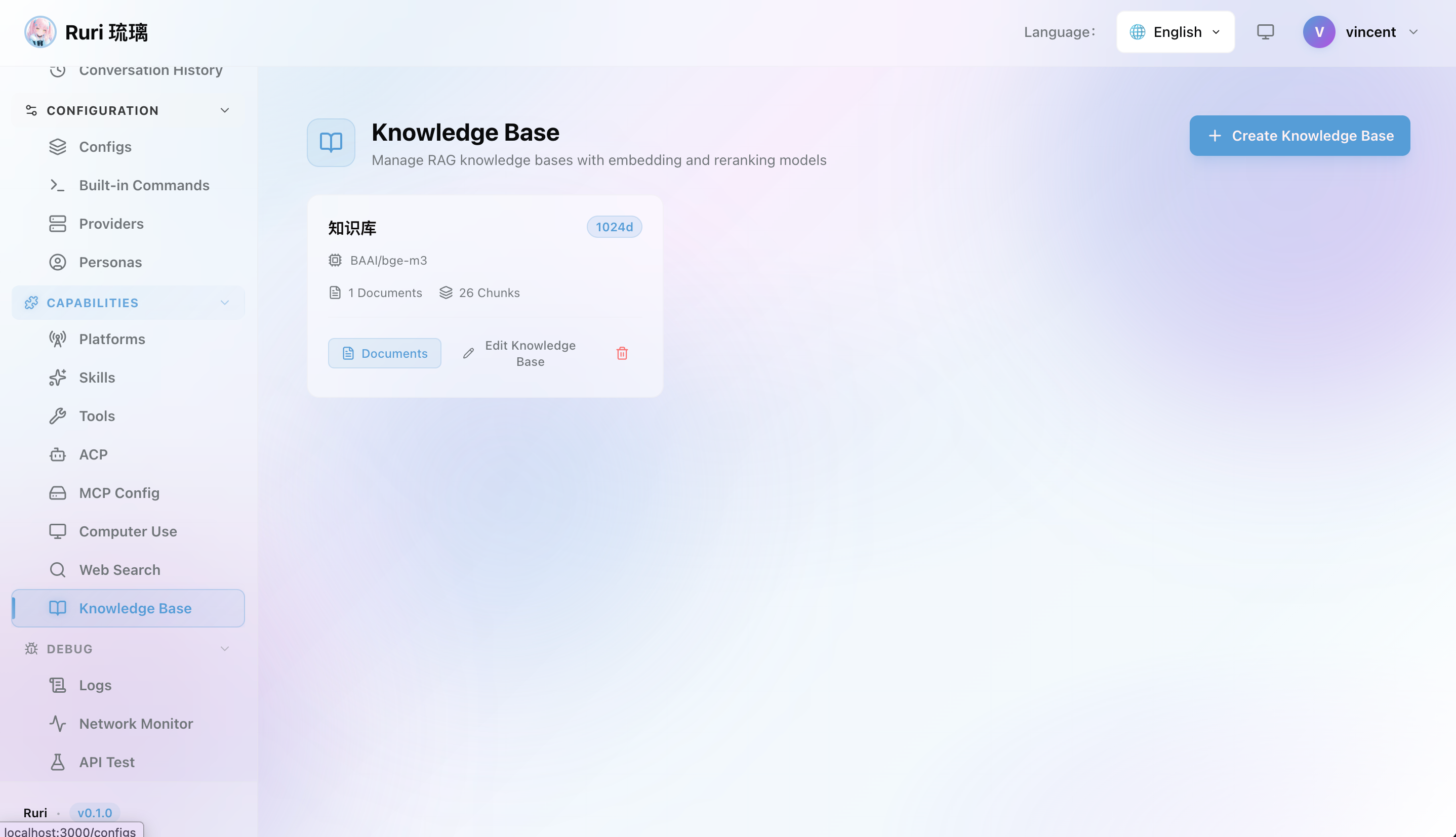
Getting Started with Knowledge Base
Step 1: Set Up an Embedding Model
You need an embedding model to power the search. Go to the Knowledge Base settings and configure:
- Provider — Where the embedding model is hosted (e.g., OpenAI)
- API URL — The endpoint URL
- API Key — Your authentication key
- Model — The embedding model name (e.g.,
text-embedding-3-small) - Dimensions — The vector dimensions for the model
提示
If you're already using OpenAI as your chat provider, you can use their embedding model too. The text-embedding-3-small model is affordable and works well for most use cases.
Step 2: Create a Knowledge Base
- Go to the Knowledge Base page
- Click Create Knowledge Base
- Give it a name and description (e.g., "Company Policies" or "Project Documentation")
- Save it
Step 3: Upload Documents
- Open the knowledge base you just created
- Click Upload and select your files
- Wait for the ingestion to complete — you'll see the progress in the UI
Step 4: Activate the Knowledge Base
Toggle the knowledge base on so the AI can search it during conversations.
That's it! Now when you ask a question related to your documents, the AI will search through them and use the information to give you informed answers.
Supported Document Formats
| Format | File Types | Notes |
|---|---|---|
.pdf | Text is extracted from pages | |
| Excel | .xls, .xlsx | Cell data is read from sheets |
| Word | .docx | Text and formatting extracted |
| Plain Text | .txt, .md | Content read directly |
Improving Search Quality
Enable Reranking
Reranking improves search results by re-scoring them for relevance. This is optional but highly recommended for better accuracy.
To set it up, configure the rerank model in the Knowledge Base settings:
- Provider — The rerank service provider
- API URL — The rerank endpoint
- API Key — Authentication key
- Model — The rerank model name
- Top-K — How many results to return (e.g., 5)
Tune Chunk Settings
When documents are uploaded, they're split into smaller pieces called "chunks." You can adjust:
- Chunk size — Smaller chunks = more precise search, but may lose context
- Chunk overlap — Overlapping chunks help preserve information at the boundaries
- Separator — How text is split (default works well for most cases)
提示
Start with the default settings and adjust only if search results aren't satisfactory. The defaults work well for most document types.
Managing Knowledge Bases
Via Web UI
- Go to Knowledge Base in the sidebar
- Create new knowledge bases for different document collections
- Upload documents to each knowledge base
- Monitor ingestion progress
- Activate or deactivate knowledge bases with the toggle
- Delete knowledge bases you no longer need
Organizing Knowledge Bases
Keep your knowledge bases focused on specific topics for better search results:
- One knowledge base per domain — e.g., "HR Policies", "Technical Docs", "Product Specs"
- Don't mix unrelated content — A focused knowledge base gives more relevant results than a general-purpose one
- Use Config Profiles — Control which knowledge bases are active in each profile
Tips
- Quality over quantity — A well-curated knowledge base with relevant documents performs better than one stuffed with everything
- Keep documents up to date — Re-upload documents when they change so the AI has current information
- Test your knowledge base — Ask questions you know the answers to and verify the AI's responses
- Use reranking — It makes a noticeable difference in answer quality
- Start small — Upload a few documents first to verify everything works, then add more