
Skills
Skills let you teach Ruri new tricks. A skill is simply a Markdown file that tells the AI how to behave for a specific task — like reviewing code, writing documentation, or translating text.
What Are Skills?
Think of skills as custom instructions you give the AI. Each skill defines:
- What the AI should do — The instructions written in Markdown
- When to use it — Triggers that tell the AI when this skill is relevant
- Which tools it can use — Limit or expand the AI's capabilities for this skill
- What model to use — Optionally use a different AI model for this skill
For example, you could create a "Code Review" skill that:
- Only uses file-reading tools (no writing)
- Uses a high-effort model for thorough analysis
- Automatically kicks in when you ask about code quality
Creating Your First Skill
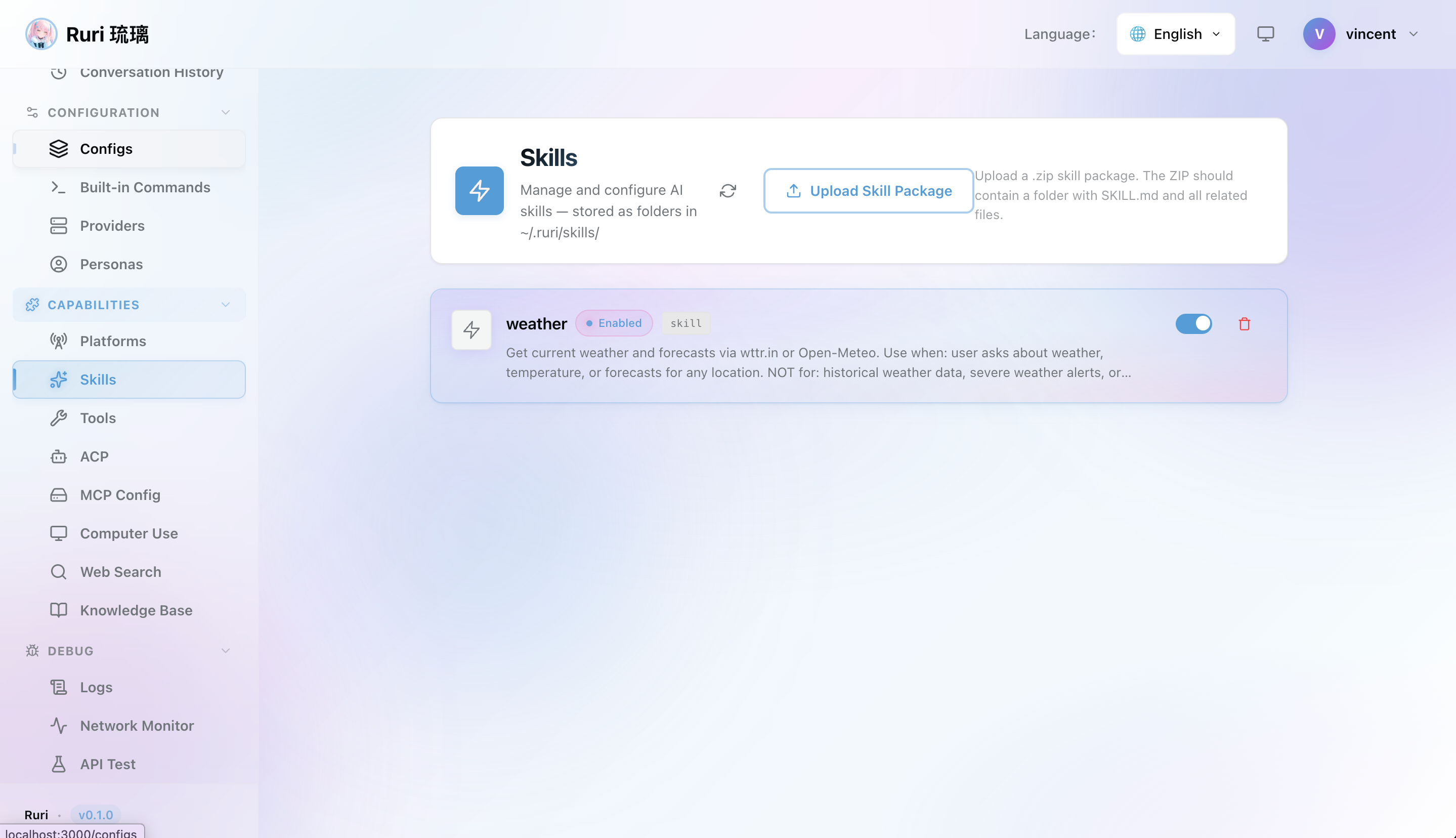
Let's walk through creating a practical skill from scratch. We'll make a "Summarize" skill that reads any file and gives you a clear summary.
Step 1: Open the Skills Page
Navigate to Skills in the sidebar and click Add Skill (or create a new skill).
Step 2: Fill in the Frontmatter
The frontmatter is the configuration at the top of your skill file, between the --- markers:
---
name: "summarize"
description: "Summarize the content of any file or text"
when_to_use: "When the user asks for a summary of a file, document, or text"
argument_hint: "path to the file to summarize"
user_invocable: true
allowed_tools:
  - read_file
  - search_files
  - list_directory
---

You are a summarization expert. When given a file or text:

1. Read the content carefully
2. Identify the main topics and key points
3. Write a clear, concise summary in bullet points
4. Highlight any important details, decisions, or action items
5. Keep the summary under 200 words unless the user asks for more detail
Step 3: Save and Activate
- Click Save to create the skill
- Toggle the skill on using the switch on the Skills page
- Try it out! In a chat, ask: "Summarize my README.md"
提示
The allowed_tools field is important — by only listing read_file, search_files, and list_directory, you're telling the AI it can look at files but NOT modify them. This makes the skill safe to use.
Another Example: Translation Assistant
You can also create skills tailored to your needs. Here's an example of a "Translation Assistant":
Name: translator
Description: Professional Chinese-English translation assistant
Skill Content (in Markdown):
---
name: "translator"
description: "Professional Chinese-English translation assistant, auto-detects language and translates"
when_to_use: "When the user needs to translate text"
user_invocable: true
---

You are a professional Chinese-English translation expert. Your rules:

1. Auto-detect the input text's language
2. If Chinese, translate to English; if English, translate to Chinese
3. Preserve the original tone and style during translation
4. For technical terms, annotate the original term in parentheses after translation
5. If the original text is ambiguous, provide multiple translation options with explanations

Provide the translation result directly without additional explanation.
Skill Frontmatter Reference
Here's a quick reference for the fields you can use in a skill:
| Field | Required | What It Does |
|---|---|---|
name | Yes | Unique name for the skill |
description | Yes | What the skill does (shown in the UI) |
when_to_use | No | When the AI should automatically use this skill |
argument_hint | No | Hint for what arguments the user should provide |
arguments | No | Define specific arguments the skill accepts |
user_invocable | No | Whether users can manually trigger it (default: true) |
disable_model_invocation | No | Prevent the AI model from being called for this skill |
allowed_tools | No | List of tools this skill can use (default: all) |
model | No | Override the active model for this skill |
effort | No | Reasoning effort: low, medium, or high |
agent | No | Override the agent configuration for this skill |
context | No | Extra files to include when the skill runs |
hooks | No | Run shell commands before or after the skill executes |
paths | No | File patterns that trigger this skill automatically |
shell | No | Run a shell command before the skill executes and include output |
Arguments
You can define arguments that the skill expects:
arguments:

- name: "path"
  description: "File or directory path to review"
  required: true
Disable Model Invocation
When disable_model_invocation is set to true, the skill executes without calling the AI model. This is useful for skills that only run shell commands or hooks without needing an AI response:
---
disable_model_invocation: true
shell: "cat {{path}}"
---
Hooks
Hooks let you run shell commands at specific points during skill execution:
---
hooks:
  pre: "echo 'Starting analysis...'"
  post: "echo 'Analysis complete!'"
---- pre — Runs before the skill executes
- post — Runs after the skill completes
Shell
Run a shell command and include its output as context for the skill:
---
shell: "git diff --stat"
---
The command output is captured and included in the prompt sent to the AI, giving the skill real-time context from your system.
Agent Override
Customize the agent behavior for this skill:
---
agent:
  max_tool_rounds: 10
  auto_execute_tools: true
---
Effort Levels
The effort field controls how much thinking the model does:
low— Quick, lightweight responsesmedium— Balanced (default)high— Thorough, detailed analysis (great for code reviews or complex tasks)
Skill Examples
Code Review Skill
---
name: "code-review"
description: "Review code changes and provide feedback"
when_to_use: "When the user asks for a code review"
allowed_tools:
  - read_file
  - search_files
  - list_directory
effort: "high"
---

You are a code reviewer. Analyze the code and provide:

1. A summary of what the code does
2. Potential bugs or issues
3. Suggestions for improvement
4. Code style observations
Translation Skill
---
name: "translate"
description: "Translate text between languages"
argument_hint: "text to translate and target language"
allowed_tools: []
---

You are a professional translator. Translate the given text naturally,
preserving the tone and meaning. If no target language is specified,
ask the user which language they want.
Doc Writer
---
name: "doc-writer"
description: "Auto-generate documentation from code"
when_to_use: "When the user needs to generate documentation"
allowed_tools:
  - read_file
  - write_file
  - create_file
  - list_directory
---

You are a technical documentation expert. Generate clear, structured documentation
based on the given code or project. Use Markdown format, including code examples
and usage instructions.
Managing Skills
Via Web UI
- Go to Skills in the sidebar
- Browse your installed skills
- Toggle skills on/off with the switch
- Add new skills manually or upload a skill package
- Edit any skill by clicking on it
- Delete skills you no longer need
Skill Packages
You can package multiple skills as a ZIP file for easy sharing:
- Create your skill Markdown files
- Place them in a folder
- Compress the folder into a ZIP archive
- Upload the ZIP on the Skills page
This is great for sharing skill sets with your team or across different Ruri instances.
提示
When creating skill packages, make sure each Markdown file has valid frontmatter with at least name and description fields.
Skill Activation
Deactivated skills are preserved but won't be available to the AI or the user. You can also control which skills are active per Config Profile — for example, enable coding skills only in your "Development" profile.
Tips
- Start simple — Create a basic skill first, test it, then add complexity
- Limit tools — Only give a skill the tools it needs. A translation skill doesn't need file write access!
- Use effort wisely — Set
effort: highfor analysis tasks,effort: lowfor quick lookups - Write clear
when_to_use— This helps the AI know when to automatically invoke your skill - Iterate — Test your skills and refine the prompts based on the results