
ACP Server — Ruri in Your IDE
Want Ruri's AI power right inside your code editor? The Agent Client Protocol (ACP) lets you use Ruri as an AI assistant in your IDE — with full access to your configured tools, skills, and model providers.
Supported IDEs
| IDE | Description |
|---|---|
| Zed | High-performance code editor with native ACP support |
| JetBrains | IntelliJ IDEA, PyCharm, WebStorm, and more |
| Other ACP clients | Any tool that supports the Agent Client Protocol |
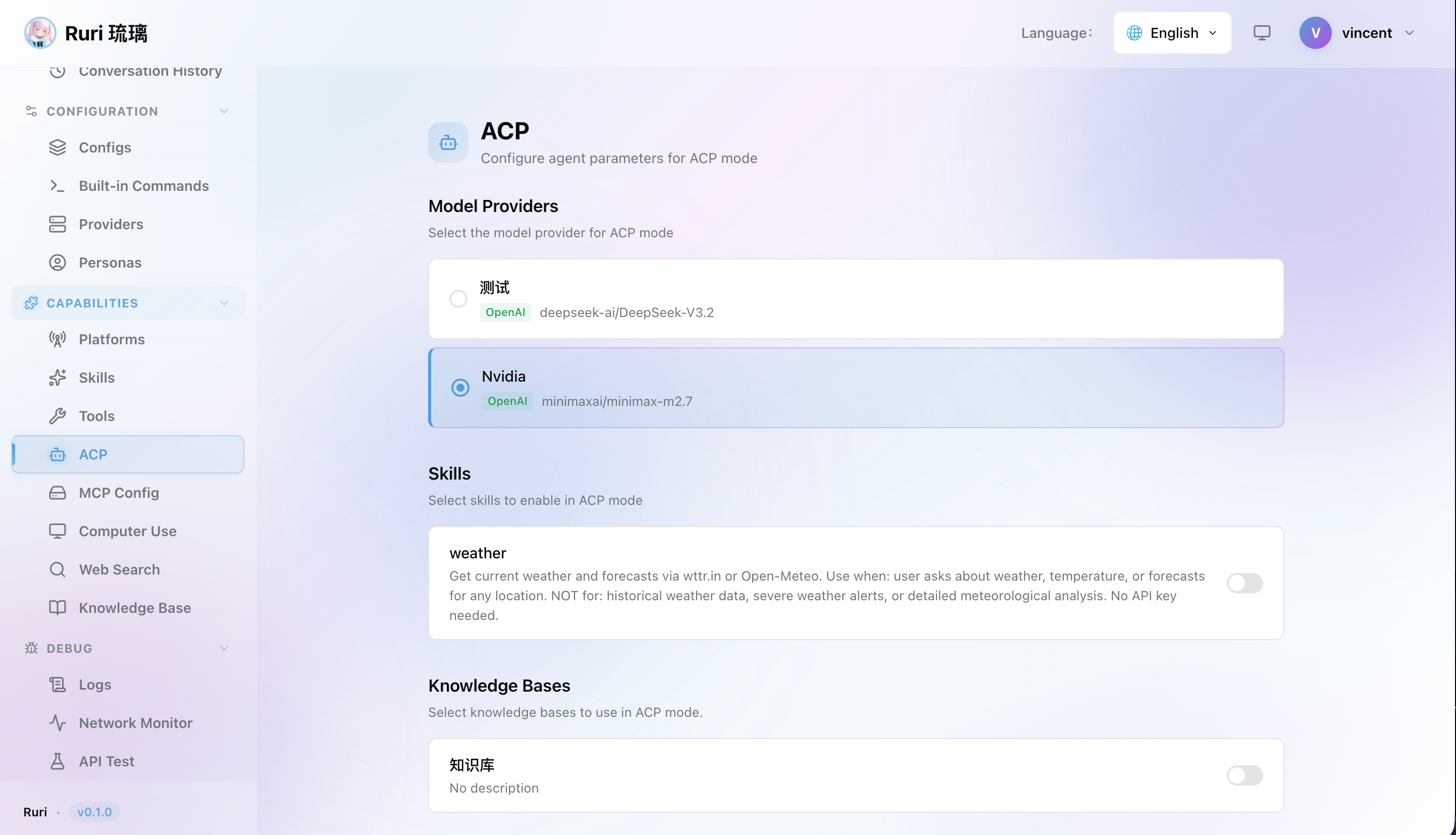
Setup Guide
Using Ruri in Zed
- Make sure Ruri is installed and available (the
ruri --acpcommand should run successfully) - Open Zed's settings file
- Add the following to the
agent_serverssection:
{
  "agent_servers": {
    "ruri": {
      "type": "custom",
      "command": "/path/to/ruri",
      "args": ["--acp"]
    }
  }
}- Replace
/path/to/ruriwith the actual path to your Ruri binary - After saving, Ruri will be available as an AI agent in Zed
Using Ruri in JetBrains
- Make sure Ruri is installed and available
- Open the AI Assistant settings in your JetBrains IDE
- Configure Ruri as an external agent server
- Set the command to the path of your Ruri binary, and add
--acpas an argument - Save and you're ready to use it
What You Can Do in Your IDE
When using Ruri in your IDE, the AI has the same capabilities as in the Web UI:
- 📖 Read code — The AI can read project files and understand code structure
- ✏️ Edit code — The AI can directly modify and create files
- 🔍 Search code — The AI can search for code and files in your project
- 💻 Execute commands — If Computer Use is enabled, the AI can run build and test commands
- 🛠️ Use skills — All active skills from your current config profile are available
- 🔄 Streaming responses — The AI's output is streamed in real-time to your IDE
- 🌐 Independent proxy — ACP has its own proxy configuration for routing LLM requests
提示
When using Ruri in your IDE, make sure your Config Profile settings match your needs. You can create a dedicated profile for IDE use.
How It Works
In IDE mode, Ruri runs as a background service:
- Your IDE sends requests to Ruri
- Ruri processes them using the current persona, skills, and tools
- The AI generates a response (potentially using tools like file operations)
- The result is returned to your IDE
From the AI's perspective, it doesn't matter whether the request comes from the Web UI or the IDE — the processing is the same.
Recommended Setup
For the best IDE experience, create a dedicated Config Profile for ACP:
- Name it "IDE" or "Coding"
- Choose your best coding model as the provider
- Set a Code Expert persona for technical accuracy
- Enable relevant skills like code review or testing
- Enable Computer Use in Sandbox mode for build/test commands
- Limit tools to only what's needed for coding tasks
This way, the AI in your IDE is specialized for development work, while your regular chat profile stays separate.
Troubleshooting
AI Not Responding in IDE
- Make sure the Ruri binary path is correct
- Try running
ruri --acpmanually in a terminal to check for errors - Verify that Ruri has execute permissions
Tools Not Available
- Check that the required tools are enabled in the current Config Profile
- Computer Use (shell commands, etc.) needs to be enabled separately in the profile
- Check if skills'
allowed_toolsrestrictions are limiting access to certain tools
Model Not Responding
- Confirm that the provider is correctly configured and active
- Check that your API key is valid
- Verify your network connection is working
Security Notes
- The ACP server runs with the same permissions as the Ruri process
- Tool permissions follow your Config Profile settings
- Consider creating a restricted profile with limited tool access for ACP use
- Only enable shell command tools in trusted environments