
Computer Use
Computer Use lets the AI execute commands and run scripts on your computer. This is a powerful feature that enables the AI to help you with compiling code, running tests, installing dependencies, and more.
What Computer Use Enables
When enabled, the AI can:
- 💻 Run shell commands — Execute
git status,cargo build,npm install, and more - 🐍 Run Python scripts — Execute Python code for data processing or computation
- 🔧 Automate tasks — Handle repetitive command-line operations for you
Runtime Modes
Computer Use offers three runtime modes, giving you a choice between safety and flexibility:
| Mode | Description | Best For |
|---|---|---|
| None | Computer Use is disabled | Simple chat sessions |
| AIO Sandbox ⭐ | Commands run in an isolated Docker container via AIO Sandbox, fully isolated from the host | ✅ Recommended for daily use |
| Local | Commands run directly on your system, with the same permissions as the Ruri process | When full system access is needed |
AIO Sandbox Mode (Recommended)
AIO Sandbox mode executes commands in an isolated Docker container via the AIO Sandbox service, providing the strongest security isolation:
- 🔒 Commands execute in an isolated container, completely isolated from the host system
- 📦 The AI can use 8 sandbox-specific tools covering shell execution, file read/write/edit, directory browsing, file finding, and content searching (see below)
- 🌐 Sandbox endpoint is configurable, supporting remote sandbox instances
- 🛡️ Host filesystem and system commands are not directly accessible
If AIO Sandbox mode is selected but no endpoint is configured, Ruri will fall back to basic local file tools and log a warning.
To use AIO Sandbox, you need to deploy the AIO Sandbox service first, then configure the sandbox endpoint in Ruri.
AIO Sandbox Tools
When AIO Sandbox mode is active, the AI has access to 8 dedicated tools for rich file operations and command execution within the isolated container:
| Tool | ID | Description | Parameters |
|---|---|---|---|
| Shell | shell | Execute shell commands in the sandbox container, with an optional timeout | command (required) — command to run; timeout (optional) — timeout in seconds (default 30) |
| Read File | read_file | Read file contents from the sandbox | path (required) — file path |
| Write File | write_file | Write content to a file in the sandbox | path (required) — file path; content (required) — content to write |
| Create File | create_file | Create a new file (fails if already exists; auto-creates parent directories) | path (required) — file path; content (required) — file content |
| Edit File | edit_file | Find and replace exact text in a file — surgical edits using old_text/new_text pairs | path (required); old_text (required); new_text (required) |
| List Directory | list_directory | List directory contents with file info (size, type, permissions), defaults to /home/gem | path (optional) — directory path (default /home/gem) |
| Find Files | find_files | Find files by name pattern using glob syntax (e.g., **/*.py, src/**/*.rs) | path (required) — search directory; glob (required) — filename pattern |
| Search in File | search_in_file | Search within a file using a regex pattern, returns matches with line numbers | path (required) — file path; regex (required) — regex pattern |
Tool Details
Shell — Executes arbitrary shell commands inside the sandbox's Docker container. Results include stdout, exit code, and execution status. Commands that time out may still return partial output. Shell sessions are managed via session_id for context continuity.
Read File — Reads the content of a file at a given path inside the sandbox. Useful for viewing configs, scripts, logs, and more.
Write File — Writes content to a file at a given path in the sandbox, overwriting any existing content. Can also be used to create a file when it doesn't already exist.
Create File — Creates a new file at the specified path with the given content. Unlike Write File, it errors if the file already exists, preventing accidental overwrites. Missing parent directories are auto-created.
Edit File — Performs precise text replacement in a file using old_text (text to find) and new_text (replacement). old_text must match file content exactly (including whitespace and indentation). Errors if not found or if multiple matches are found. Ideal for surgical code changes rather than rewriting entire files.
List Directory — Lists all entries in a directory, showing file/directory icons (📁/📄), names, and file sizes, with a summary of total entries, directories, and files at the end. Defaults to /home/gem if no path is specified.
Find Files — Uses glob patterns to find files within a specified directory. Supports standard glob syntax like **/*.py (recursively find all Python files), src/**/*.rs (recursively find Rust files under src/), etc.
Search in File — Searches within a specific file using a regular expression. Returns matched text content with corresponding line numbers. Useful for finding specific functions, variables, or patterns in code.
Retry & Error Handling
The AIO Sandbox client includes built-in automatic retry mechanisms to ensure reliable execution even when the sandbox service is temporarily unavailable:
- Automatic exponential backoff retry — When a request encounters a transient server error (HTTP 502 / 503 / 504), the client automatically retries up to 3 times
- Exponential backoff intervals — Retry intervals grow exponentially: 1s for the 1st retry, 2s for the 2nd, 4s for the 3rd
- Only transient errors are retried — Client errors (4xx) and other non-transient errors do not trigger retries and are returned immediately
- Descriptive error messages — Transient errors include detailed hints reminding you to check whether the sandbox container is running and whether the endpoint is reachable
For example, when the sandbox service is restarting, the client automatically retries requests without manual intervention. If all retries fail, an error message with diagnostic information is returned to help with troubleshooting.
Local Mode
Commands run directly on your system with full access:
- The AI can do anything your user account can do
- Full access to all files, network, and system commands
- Maximum flexibility, but requires trust
警告
In Local mode, the AI has the full permissions of the Ruri process on your system. Only use this in trusted environments. We strongly recommend using AIO Sandbox mode instead.
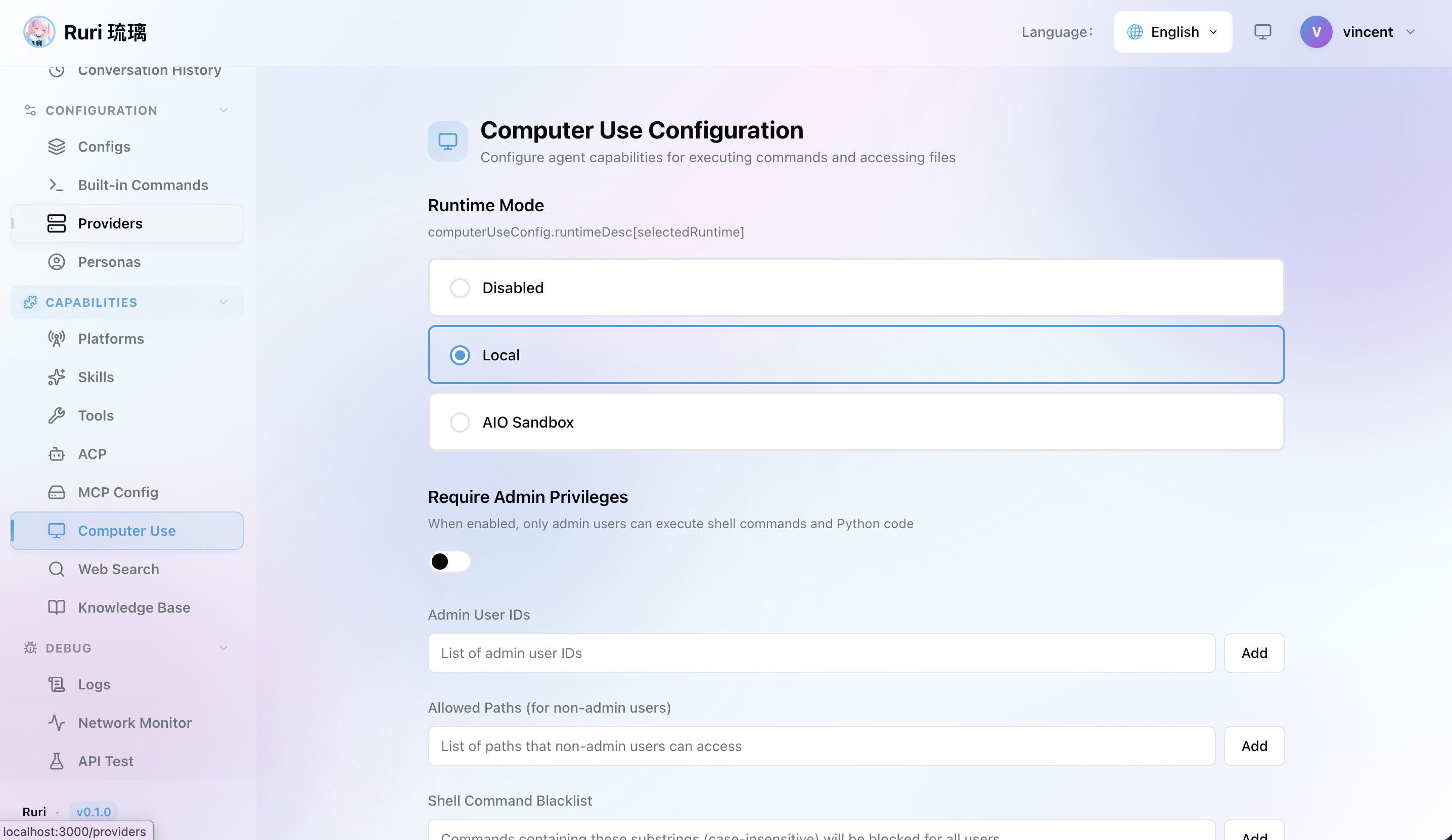
Enabling Computer Use
Via Web UI
- Go to Settings in the sidebar
- Find the Computer Use section
- Turn on the feature
- Choose your runtime mode:
- None — Disable Computer Use
- AIO Sandbox — Isolated Docker container (recommended)
- Local — Full system access
- If AIO Sandbox is selected, configure the Sandbox Endpoint (e.g.
http://localhost:8080) - Set the workspace directory — This is where commands will run by default
- Save
提示
For first-time use, we recommend AIO Sandbox mode — it handles most use cases while keeping your system safe.
AIO Sandbox Configuration
AIO Sandbox connects to a remote sandbox service via HTTP API. The configuration is straightforward:
| Setting | Description | Default |
|---|---|---|
| Endpoint | AIO Sandbox service URL | http://localhost:8080 |
提示
You can deploy the AIO Sandbox service on the same machine or a remote server. For team environments, a shared sandbox instance allows multiple users to safely run commands without affecting the host system.
Via Config Profile
You can include Computer Use settings in your Config Profile. This lets you have:
- A "Development" profile with Computer Use enabled in Sandbox mode
- A "Casual Chat" profile with Computer Use disabled
- Quick switching between them without changing settings manually
When to Use Computer Use
✅ Recommended Scenarios
- "Run my project's tests" — The AI can execute test commands and analyze results
- "Install this project's dependencies" — The AI can run
npm install,pip install, etc. - "Build and check for errors" — The AI can run build commands and interpret error messages
- "Check git repository status" — The AI can run
gitcommands to help manage code - "Process this data with Python" — The AI can write and execute Python scripts
❌ When You Don't Need It
- Just chatting with the AI
- Only need the AI to read/write files (file tools are available by default)
- Only need the AI to search code (search tools are available by default)
- Using Ruri in untrusted environments
Workspace
The workspace defines the scope of the AI's operations:
- Working directory — The default path where the AI executes commands
- Allowed paths — The directory scope the AI can access
By configuring the workspace appropriately, you can restrict the AI to only operate within directories you allow, improving security.
What You'll See
When the AI uses Computer Use, you'll see each command it runs right in the conversation:
- The AI decides it needs to run a command
- A tool call appears in the chat showing the exact command
- The output is displayed
- The AI uses the output to continue helping you
This gives you full visibility into what the AI is doing on your system.
Safety Tips
- 🛡️ Prefer sandbox mode — It's sufficient for most tasks
- 📂 Limit workspace scope — Only give the AI access to the directories it needs
- 👀 Watch what the AI does — All commands executed by the AI are shown in the chat — pay attention
- 🚫 Turn it off if unsure — If you don't need the AI to execute commands, keep Computer Use off
信息
Every time the AI executes a command, you can see the exact command content in the chat interface. If you notice anything unusual, use the /stop command to interrupt immediately.