
Command System
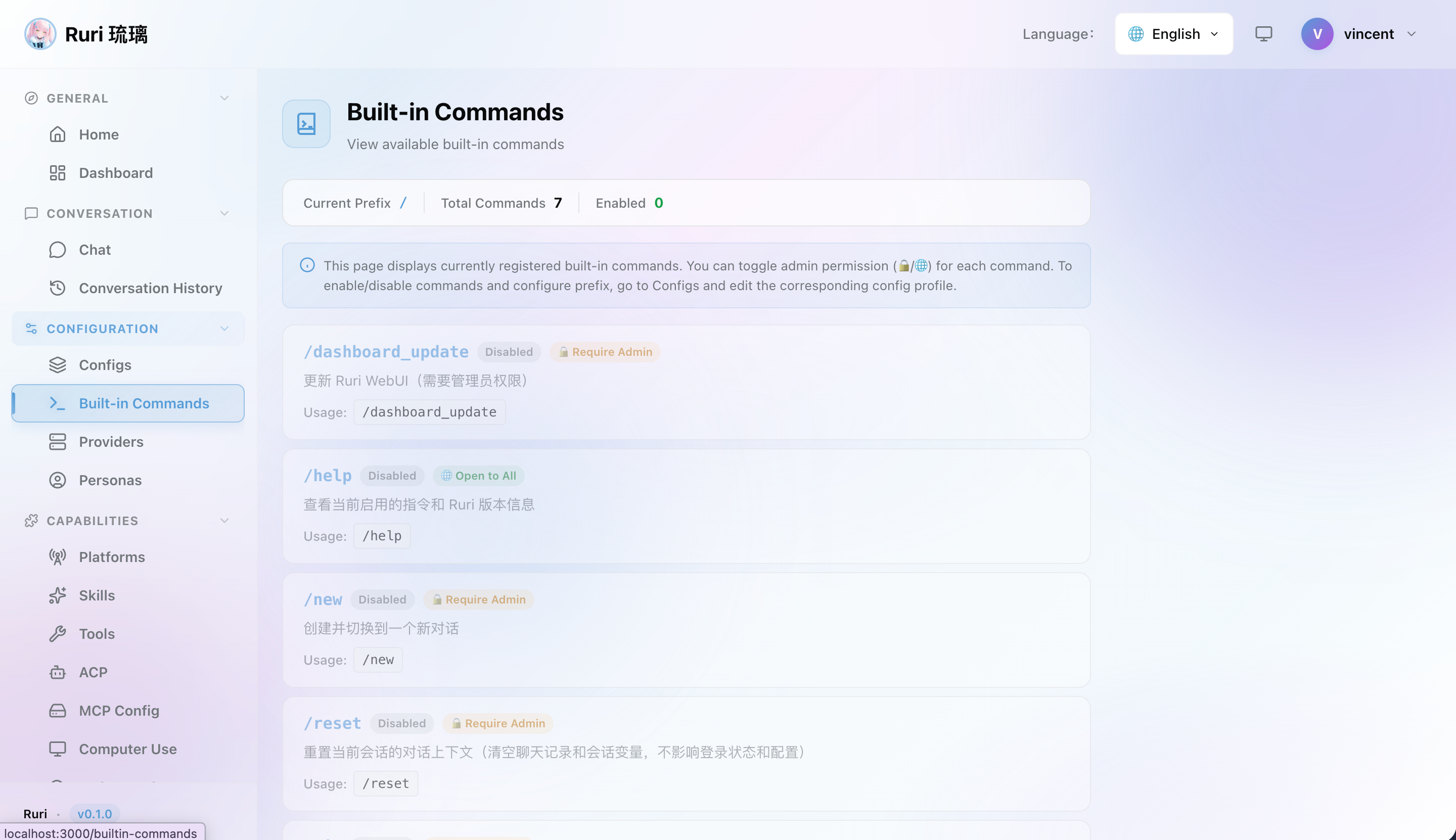
Ruri includes handy chat commands that you can type directly in the message input. They start with / and give you quick control over your session.
Quick Reference
| Command | What It Does |
|---|---|
/help | Show available commands and version info |
/new | Start a fresh new conversation |
/reset | Clear the AI's memory for the current conversation |
/sid | Show current session info |
/whoami | Show your user ID, identity, and admin status |
/set <key> <value> | Change a setting for this conversation |
/unset <key> | Remove a previously set setting |
/stop | Stop the AI if it's taking too long |
/dashboard_update | Update the Web UI (admin only) |
Command Details
/help — Get Help
Shows all available commands plus the current Ruri version.
/help/new — New Conversation
Creates a brand new conversation and switches to it. Use this when you want a completely clean slate.
/new提示
Use /new when switching topics to prevent the AI from being confused by earlier conversation context.
/reset — Reset Context
Clears the conversation history from the AI's memory, but keeps you in the same conversation. Think of it as "forget what we just talked about" without starting a completely new chat.
Use /reset when:
- The conversation is getting long and the AI's responses seem off
- You want to change topics within the same conversation
- The AI seems confused by earlier messages
/reset提示
/new starts a completely new conversation, while /reset clears context in the current one. Use /new when you want a fresh start, /reset when you just want to change direction.
/sid — Session Info
Shows information about your current session.
/sid/whoami — Who Am I
Shows your user ID, current platform, message type, and whether you have admin privileges. This is useful for troubleshooting permission issues.
/whoami提示
WebUI users are always considered admins (they are authenticated). If you're using a chat platform (DingTalk, Discord, etc.), your admin status depends on whether your user ID is in the admin list configured in Computer Use settings.
/set — Change a Setting
Change a setting for the current conversation. Common uses:
/set persona "Code Expert"
/set model "gpt-4o"
/set effort high
These changes only apply to the current conversation — they reset when you start a new one.
/unset — Remove a Setting
Remove a setting you previously set with /set:
/unset persona/stop — Stop the AI
If the AI is taking too long, doing something unexpected, or caught in a loop, use /stop to halt it immediately.
/stop提示
The AI's responses sometimes take a while, especially with complex tool calls. Give it a moment before stopping — but don't hesitate to use /stop if something seems wrong.
/dashboard_update — Update Web UI
Triggers an update of the Web UI. This command requires admin privileges.
/dashboard_updatePractical Examples
Switching to a Different Persona
/set persona "Casual Chat"The AI immediately switches to a more relaxed, friendly tone for the rest of this conversation.
Using a More Powerful Model
/set model "claude-sonnet-4-20250514"Switch to a different model for this conversation. Make sure the model is available in your active provider.
Getting Better Analysis
/set effort highTell the AI to think more carefully and give more detailed responses.
Quick Context Reset
/resetThe AI forgets the current conversation context, so you can start a new topic without creating a new conversation.
Things to Know
- Commands are processed before the message is sent to the AI — they execute instantly
- Commands are not sent to the AI model, so the AI won't see them in the conversation
- If you want the AI to know about a setting change, mention it in a regular message (e.g., "By the way, I've switched you to high-effort mode")
- All
/setchanges are temporary — they reset when you start a new conversation