
Built-in Tools
Ruri's AI isn't just a chatbot — it can take action on your behalf. Built-in tools let the AI read files, write code, search the web, and even run commands on your system.
What Can the AI Do?
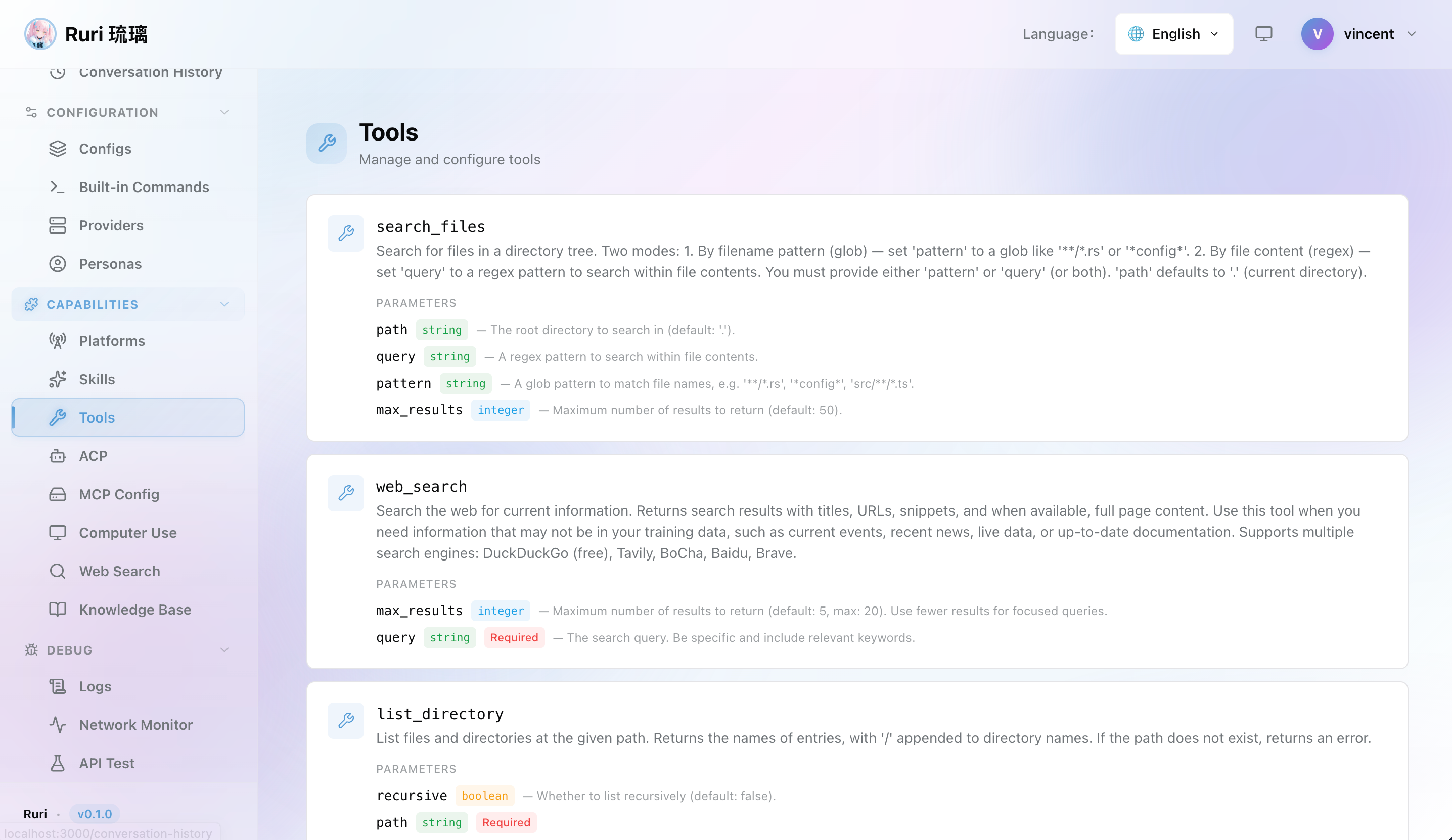
Here's a quick overview of the tools available to the AI:
| Tool | What It Does |
|---|---|
| Read File | Read the contents of any file |
| Write File | Create or overwrite files |
| Create File | Create a brand new file with content |
| Edit File | Make precise edits to existing files |
| Delete File | Delete a file at a specified path |
| List Directory | Browse folders and see what's inside |
| Search Files | Find files by name or search within file contents |
| Bash | Run shell commands (requires Computer Use) |
| Web Search | Search the web for up-to-date information |
Practical Examples
Working with Code
You can ask the AI to help with your code projects, and it will use tools to get the job done:
- "Read my
main.rsfile and explain what it does" — The AI uses Read File to inspect your code - "Fix the typo in
config.tomlon line 42" — The AI uses Edit File to make a precise change - "Create a new Python script that processes CSV files" — The AI uses Create File to write a brand new file
- "Delete the temporary log files" — The AI uses Delete File to clean up
- "Show me what's in my project directory" — The AI uses List Directory to browse your folders
- "Find all files that import
axios" — The AI uses Search Files to scan your project
Analyzing Images
If your model provider supports multimodal input, you can share images with the AI:
- "What does this screenshot show?" — Paste an image and the AI describes it
- "Analyze this chart and summarize the trends" — The AI reads charts and graphs
- "What error do you see in this screenshot?" — The AI diagnoses issues from error screenshots
The AI processes images automatically — just paste them into the chat. If the model doesn't support images, Ruri gracefully falls back to text-only mode. See Model Providers for setup details.
Searching the Web
- "What's the latest version of React?" — The AI uses Web Search to find current information
- "Look up how to configure nginx as a reverse proxy" — The AI searches the web and gives you a summary
信息
Web Search must be enabled in your Config Profile and requires a search provider to be configured.
Running Commands
- "Run my test suite" — The AI uses Bash to execute your tests
- "Install the dependencies for this project" — The AI runs
npm installorcargo build - "Check my disk usage" — The AI runs
df -hand explains the output
警告
Command execution requires Computer Use to be enabled, and the AI can run any command your system allows. See Computer Use for safety details.
When the AI Uses Tools
You don't need to tell the AI which tool to use — it decides automatically based on your request. Here's what the experience looks like:
- You send a message — For example, "What does my
package.jsonlook like?" - The AI reads the file — You'll see a tool call appear in the chat, showing that the AI is reading
package.json - The AI responds — It shares the file contents and may add context or suggestions
The AI might use multiple tools in sequence to answer your question. For example, if you ask "Are there any bugs in my code?", it might:
- List your directory to find source files
- Read each file to understand the code
- Search for common bug patterns
- Respond with its findings
提示
You can see every tool call the AI makes right in the conversation. This gives you full visibility into what the AI is doing on your behalf.
Controlling Tool Access
By default, the AI has access to all file tools. You can control what's available:
- Web Search — Enable or disable in your Config Profile
- Bash / Command Execution — Enable through Computer Use settings
- Per-skill restrictions — When creating Skills, you can limit which tools the AI can use for that specific skill
- Config Profile command settings — Control which slash commands are enabled and which require admin privileges in each Config Profile
Tips
- 📝 Be specific — Instead of "help with my code", say "read my
src/main.rsand find potential bugs". The AI will know exactly which tools to use. - 👀 Review tool calls — Always check what the AI is doing, especially when it writes files or runs commands
- ⚠️ Use Computer Use wisely — Only enable command execution when you need it. Keep it off for simple chat sessions.
- 🖼️ Share images — If your model supports it, paste screenshots and images directly into chat for the AI to analyze