
MCP Client
MCP (Model Context Protocol) lets you supercharge Ruri by connecting it to external tool servers. This means the AI can do things beyond its built-in capabilities — like accessing databases, managing files on remote systems, or using specialized services.
What Are MCP Servers?
MCP servers are external programs that provide extra tools and data to Ruri. When you connect to an MCP server, its tools become available to the AI just like the built-in ones.
For example, by connecting to a filesystem MCP server, the AI can safely access files in a specific directory. By connecting to a web search MCP server, the AI gets enhanced search capabilities.
Why Would You Use MCP?
- Extend the AI's abilities — Add tools that aren't built into Ruri
- Access external data — Connect to databases, APIs, and other data sources
- Specialized tools — Use domain-specific tools for tasks like database queries, API testing, etc.
- Safe file access — Use a filesystem server to give the AI controlled access to specific directories
How MCP Tools Work
When Ruri connects to an MCP server, here's what happens:
- The server tells Ruri what tools it offers
- These tools appear alongside Ruri's built-in tools
- The AI decides when to use them based on your conversation
- Tool calls are sent to the MCP server for execution
- Results come back and the AI continues the conversation
You'll see MCP tool calls in the chat just like built-in ones — full transparency into what the AI is doing.
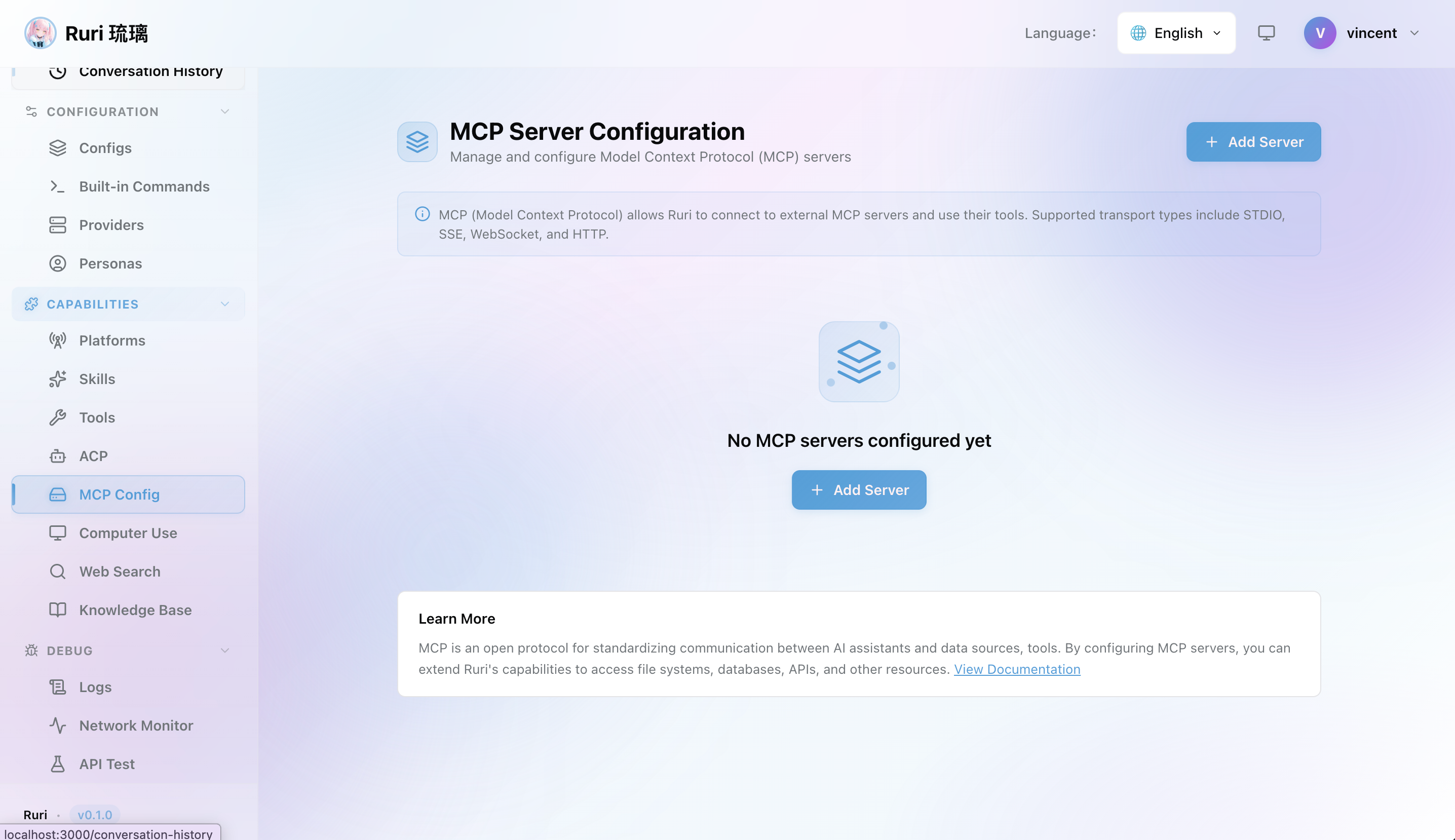
Adding an MCP Server
Step 1: Open the MCP Page
Navigate to MCP in the sidebar.
Step 2: Add a Server
Click Add Server and fill in the details:
- Name — A unique name for this server
- Transport Type — How Ruri connects to the server:
- Stdio — Runs a local program on your machine
- SSE / WebSocket / HTTP — Connects to a remote server over the network
- Configuration — The details depend on the transport type (see below)
Step 3: Enable and Use
Toggle the server on. Once connected, the tools from that server are immediately available to the AI!
信息
The connection status is shown on the MCP page. If a server fails to connect, check its configuration and make sure the required program is installed.
Popular MCP Server Examples
Filesystem Server
Give the AI controlled access to specific directories on your computer:
- Transport: Stdio
- Command:
npx - Arguments:
@modelcontextprotocol/server-filesystem /path/to/your/project
This lets the AI safely read and write files within the specified directory only.
SQLite Database Server
Let the AI query and manipulate SQLite databases:
- Transport: Stdio
- Command:
npx - Arguments:
@modelcontextprotocol/server-sqlite /path/to/database.db
GitHub Server
Let the AI work with GitHub repositories (view issues, PRs, etc.):
- Transport: Stdio
- Command:
npx - Arguments:
@modelcontextprotocol/server-github - Environment: Requires
GITHUB_PERSONAL_ACCESS_TOKEN
Puppeteer Browser Control Server
Let the AI control a browser for web operations:
- Transport: Stdio
- Command:
npx - Arguments:
@modelcontextprotocol/server-puppeteer
Brave Search Server
Use Brave Search as an alternative search engine:
- Transport: Stdio
- Command:
npx - Arguments:
@modelcontextprotocol/server-brave-search - Environment: Requires
BRAVE_API_KEY
提示
Browse the MCP Servers repository for a growing list of available servers you can connect to.
Managing MCP Servers
Via Web UI
- Go to MCP in the sidebar
- Add a new server with the Add button
- Toggle servers on/off as needed
- Monitor connection status for each server
- Edit server configurations
- Remove servers you no longer need
Connection Types
When adding a server, you'll choose how Ruri connects:
- Stdio — For servers that run as local programs. You'll need to provide the command to start them, plus any arguments and environment variables.
- SSE / WebSocket / HTTP — For servers running remotely. You'll need to provide the URL and optionally authentication headers.
警告
Only connect to MCP servers you trust. The tools they provide can access files, execute commands, or make network requests on behalf of the AI agent. Use allowed_tools in the Skills system to restrict which MCP tools are available in specific contexts.
Untrusted MCP servers may offer dangerous tools (such as executing commands or accessing files) — add them with caution. Local servers run with the same permissions as Ruri, so always verify the server's source. For remote servers, use HTTPS connections whenever possible.