
Chat Platforms
Ruri can connect to popular chat platforms so you can interact with the AI from your favorite messaging app. No more switching between your browser and your chat tools!
Supported Platforms
| Platform | What It Is |
|---|---|
| DingTalk | 钉钉 — Alibaba's enterprise messaging platform |
| Discord | Discord bot integration |
| Personal WeChat via Wechat ClawBot | |
| OneBot12 | Universal chat bot standard (QQ, Lark, etc.) |
提示
The AI behaves consistently across all platforms — same persona, skills, and tools regardless of where you message it from.
Setting Up DingTalk (钉钉)
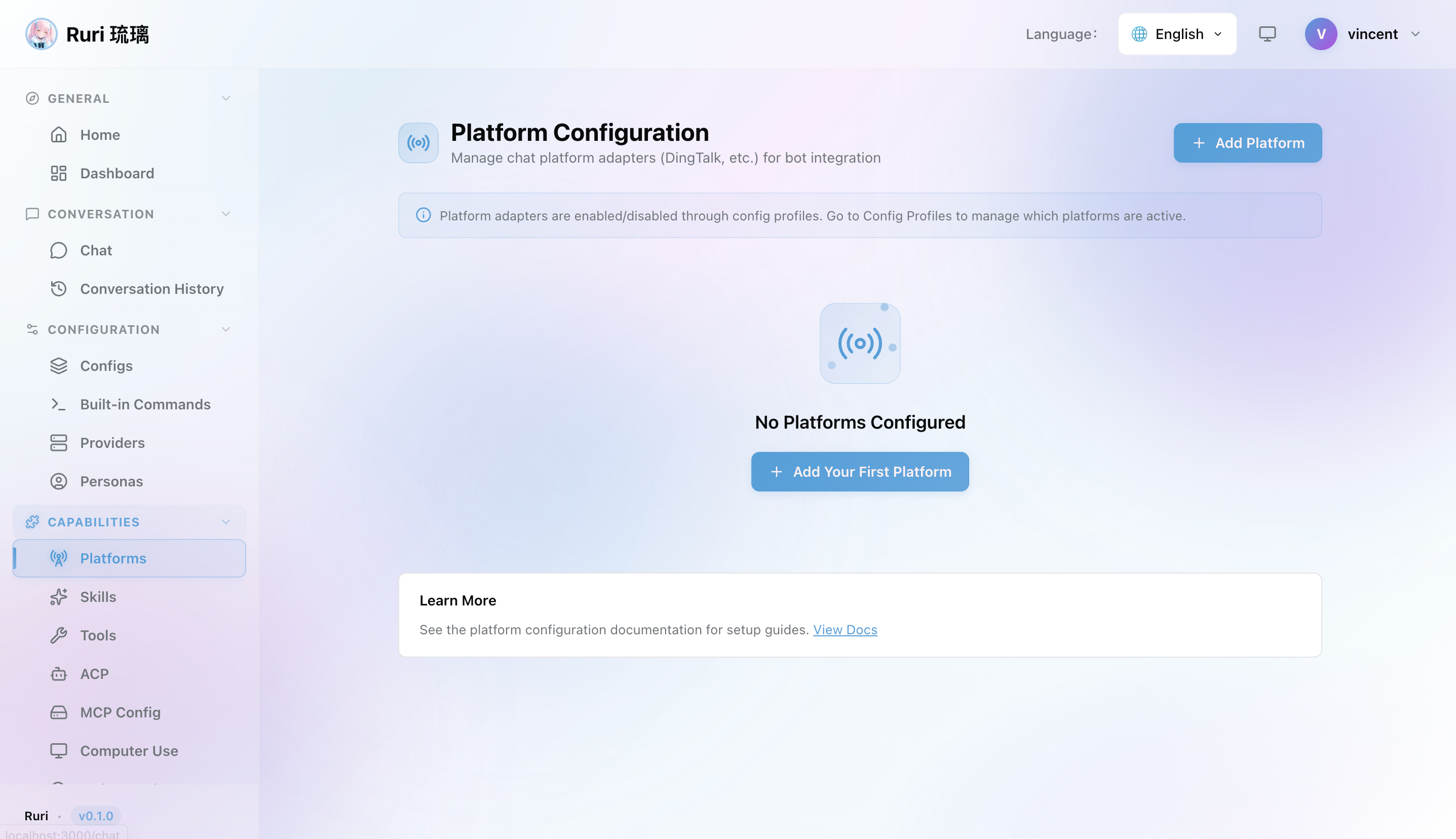
DingTalk integration lets the AI respond to messages in group chats or direct messages.
What You'll Need
- A DingTalk developer account
- A DingTalk custom robot application
Step-by-Step
- Go to the Platforms page in Ruri's Web UI
- Click Add Platform and select DingTalk
- Fill in your DingTalk credentials:
- App Key — From your DingTalk application
- App Secret — From your DingTalk application
- Robot Code — The robot's identifier
- Keyword — (Optional) A keyword that triggers the bot in group chats
- Save and enable the platform
- Head to DingTalk and send a message to your robot — Ruri will respond!
Config Fields
| Field | Description | Where to Get |
|---|---|---|
| App Key | Application identifier | DingTalk Developer Portal |
| App Secret | Application secret | DingTalk Developer Portal |
| Robot Code | Robot identifier | DingTalk Developer Portal |
| Keyword | Keyword to trigger the bot (optional) | Custom |
Setting Up Discord
Discord integration connects Ruri as a bot that can respond to messages in channels and DMs.
What You'll Need
- A Discord application and bot token from the Discord Developer Portal
Step-by-Step
- Go to the Platforms page in Ruri's Web UI
- Click Add Platform and select Discord
- Fill in your Discord credentials:
- Token — Your Discord bot token
- Application ID — Your Discord application ID
- Guild ID — (Optional) Restrict the bot to a specific server
- Save and enable the platform
- Invite the bot to your Discord server using the OAuth2 URL from the Developer Portal
- Mention or DM the bot to start chatting!
提示
Make sure your Discord bot has the "Message Content Intent" enabled in the Developer Portal, otherwise it won't be able to read messages.
Config Fields
| Field | Description | Where to Get |
|---|---|---|
| Token | Bot token | Discord Developer Portal |
| Application ID | Application ID | Discord Developer Portal |
| Guild ID | Server ID, restrict to a specific server (optional) | Discord Server Settings |
Setting Up WeChat
Personal WeChat integration uses the Wechat ClawBot framework to connect Ruri to your personal WeChat account.
What You'll Need
- A running Wechat ClawBot server
Step-by-Step
- Go to the Platforms page in Ruri's Web UI
- Click Add Platform and select WeChat
- Use the QR code login button to scan the displayed QR code with your WeChat app, the WeChat Clawbot plugin will be automatically configured and enabled.
- Send a message to your WeChat account — Ruri will respond!
提示
WeChat integration supports QR code login directly from the Web UI. After configuring the platform, click the login button and scan the displayed QR code with your WeChat app to authenticate.
Setting Up OneBot12
OneBot v12 is a universal chat bot standard that works with multiple platforms including QQ, Lark (飞书), and more. Ruri supports OneBot12 via HTTP webhook, forward WebSocket, and reverse WebSocket connections.
What You'll Need
- A OneBot12-compatible implementation (e.g., LLOneBot for QQ)
- The OneBot12 service running and accessible
Step-by-Step
- Go to the Platforms page in Ruri's Web UI
- Click Add Platform and select OneBot12
- Fill in your configuration:
- Platform — The underlying platform (e.g.,
qq) - Self User ID — Your bot's user ID on the platform
- Access Token — Authentication token
- HTTP Host/Port — For the HTTP webhook server
- WS Host/Port — For WebSocket connections
- Platform — The underlying platform (e.g.,
- Save and enable the platform
- Configure your OneBot12 client to connect to Ruri's webhook/WebSocket endpoint
信息
OneBot12 supports three connection modes:
- HTTP Webhook — The OneBot client pushes events to Ruri's HTTP endpoint
- Forward WebSocket — Ruri runs a WS server, the OneBot client connects to it
- Reverse WebSocket — The OneBot client runs a WS server, Ruri connects to it
Managing Platforms
Via Web UI
- Go to Platforms in the sidebar
- View all configured platforms and their connection status
- Enable/disable individual platforms with the toggle
- Edit platform configurations
- Remove platforms you no longer need
Hot-Reload
When you edit platform settings in the Web UI, changes take effect immediately — no server restart needed. This means you can:
- Update API tokens without downtime
- Add or remove platforms on the fly
- Adjust settings in real-time
You can also restart individual platforms without restarting the entire Ruri server:
- Go to the Platforms page
- Click the Restart button on a platform
- The platform reconnects while the rest of Ruri keeps running
Platform Persistence
Some platforms (like WeChat) update their credentials after authentication (e.g., after QR login). Ruri automatically persists these updated credentials, so you don't need to reconfigure after a restart.
Platforms and Config Profiles
You can control which platforms are active per Config Profile. This lets you:
- Enable different platform sets for different use cases
- Test a platform setup without enabling it everywhere
- Create profiles that only connect to specific messaging services
For example, you could have a "Work" profile that only connects to DingTalk, and a "Personal" profile that only connects to Discord.
How Messages Are Handled
No matter which platform a message comes from, the processing flow is the same:
- The platform receives your message
- The message enters the AI processing pipeline (applying the current persona and skills)
- The AI generates a response (potentially using tools)
- The response is sent back to you through the platform
So no matter where you chat with the AI, it's the same AI with the same capabilities.
Tips
- Start with one platform — Set up and test one integration before adding more
- Check bot permissions — Make sure your bot has the right permissions in each platform to read and send messages
- Use different profiles — Keep work and personal platforms separate with Config Profiles
- Monitor connection status — Check the Platforms page periodically to make sure everything is connected
- Restart individual platforms — If a platform disconnects, try restarting it individually before restarting the whole server