
Config Profiles
Config Profiles let you save and switch between different setups with one click. Think of them like "scene modes" on your phone — switch profiles and the AI's persona, tools, and skills all change at once.
Why Use Profiles?
Imagine these scenarios:
- 💻 Coding — You need a Code Expert persona, file operation tools, and a code review skill
- ✍️ Writing — You need a Creative Writer persona, web search, and a doc-writer skill
- 🔬 Research — You need a Research Assistant persona, knowledge base access, and web search
- 🎮 Chatting — You need a Casual Chat persona, with unnecessary tools turned off
Without profiles, you'd have to manually change several settings each time. With profiles, it's one click!
Creating a Profile
Via Web UI
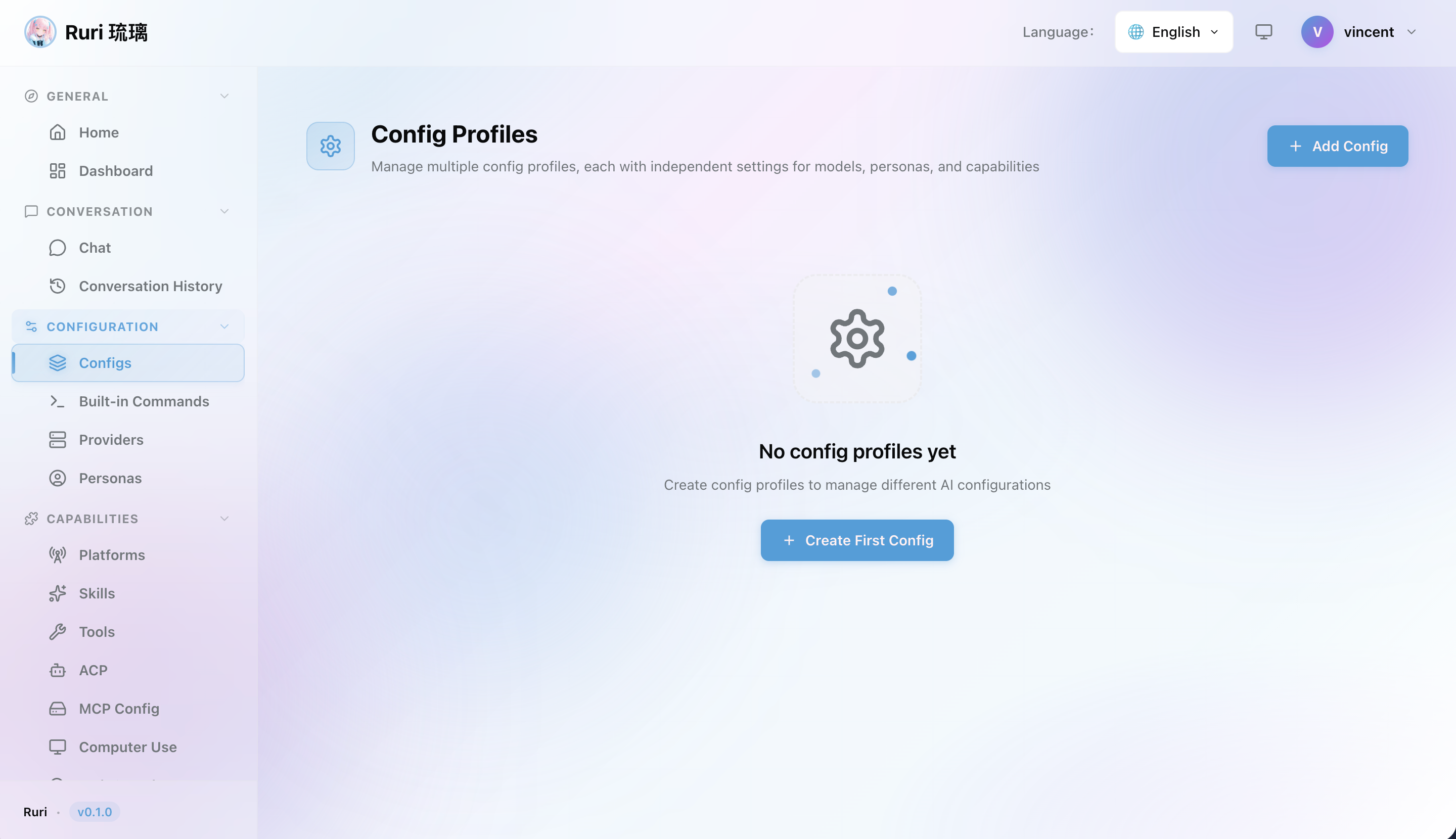
- Go to Settings → Config Profiles
- Click Create Profile
- Give your profile a name (e.g., "Coding", "Writing", "Research")
- Configure each setting in the profile (see below)
- Save
Switching Profiles
On the Config Profiles page, click any profile to switch instantly. All settings in the profile take effect immediately.
提示
Create a general-purpose profile as your default first, then create specialized profiles for specific scenarios.
What Can a Profile Configure?
Each profile can include the following settings:
| Setting | Description |
|---|---|
| Model Provider | Which AI model service to use |
| Persona | The AI's personality and communication style |
| Web Search | Whether the AI can search the web |
| Computer Use | Whether the AI can execute commands, and in which mode |
| ACP Server | Whether the IDE can connect |
| Active Skills | Which skills the AI can use |
| Active Platforms | Which chat platforms are connected |
| Active Knowledge Bases | Which knowledge bases the AI can query |
| Network Proxy | Proxy settings for outgoing requests |
| Command Prefix | Prefix for recognizing commands (default /) |
Profile Settings in Detail
Model Provider
Select which AI model provider to use when this profile is active. Providers need to be configured first on the Providers page.
Persona
Select the default Persona for the profile, which determines the AI's personality and communication style.
Web Search
When enabled, the AI can use search tools to get information from the web. A search provider must be configured first.
Computer Use
Controls whether the AI can execute system commands:
- Off — The AI cannot execute commands
- Sandbox mode — Commands run in an isolated environment (recommended)
- Local mode — Commands run directly on your system
See Computer Use for details.
ACP Server
When enabled, external IDEs can connect to Ruri as an AI assistant. See ACP Server for details.
Active Skills
Select which Skills are available in this profile. Skills not listed won't be available to the AI.
Active Platforms
Select which Chat Platforms are connected in this profile. You can create profiles that only use specific platforms.
Active Knowledge Bases
Select which Knowledge Bases the AI can query in this profile.
Network Proxy
If you need to access external services through a proxy (e.g., for API calls), configure the proxy address in config modal.
Command Prefix
Customize the prefix for Commands, defaulting to /.
Profile Examples
💻 Coding Profile
| Setting | Value |
|---|---|
| Model Provider | Anthropic (Claude) |
| Persona | Code Expert |
| Computer Use | Sandbox |
| Active Skills | code-review, doc-writer |
| Active Knowledge Bases | Project Documentation |
✍️ Writing Profile
| Setting | Value |
|---|---|
| Model Provider | OpenAI (GPT-4o) |
| Persona | Creative Writer |
| Web Search | On |
| Active Skills | doc-writer |
| Computer Use | Off |
🔬 Research Profile
| Setting | Value |
|---|---|
| Model Provider | DeepSeek |
| Persona | Research Assistant |
| Web Search | On |
| Active Skills | (as needed) |
| Active Knowledge Bases | Research Papers, Industry Reports |
Managing Profiles
Via Web UI
- Go to Settings or Profiles
- View all your profiles
- Create new profiles for different use cases
- Edit existing profiles to tweak settings
- Switch between profiles instantly
- Delete profiles you no longer need
Tips
- 🏷️ Use descriptive names — Name profiles by scenario so you can tell them apart at a glance
- 🎯 Keep them focused — Each profile should serve one purpose, not be a catch-all
- 🧪 Test before using — Verify new configurations in a test profile first
- 📋 Start with a default — Build a solid general-purpose profile first, then create specialized ones gradually