
Web Search
Web Search allows the AI to look up current information from the internet. This is useful when you need answers about recent events, current documentation, or any information that may not be in the AI's training data.
Why Use Web Search?
By default, the AI relies on its training data, which has a knowledge cutoff. With Web Search enabled, the AI can:
- Find current information — Look up the latest news, prices, or events
- Access up-to-date documentation — Search for the most recent API docs or tutorials
- Verify facts — Cross-reference information to ensure accuracy
- Discover new resources — Find tools, libraries, or services that were released recently
Enabling Web Search
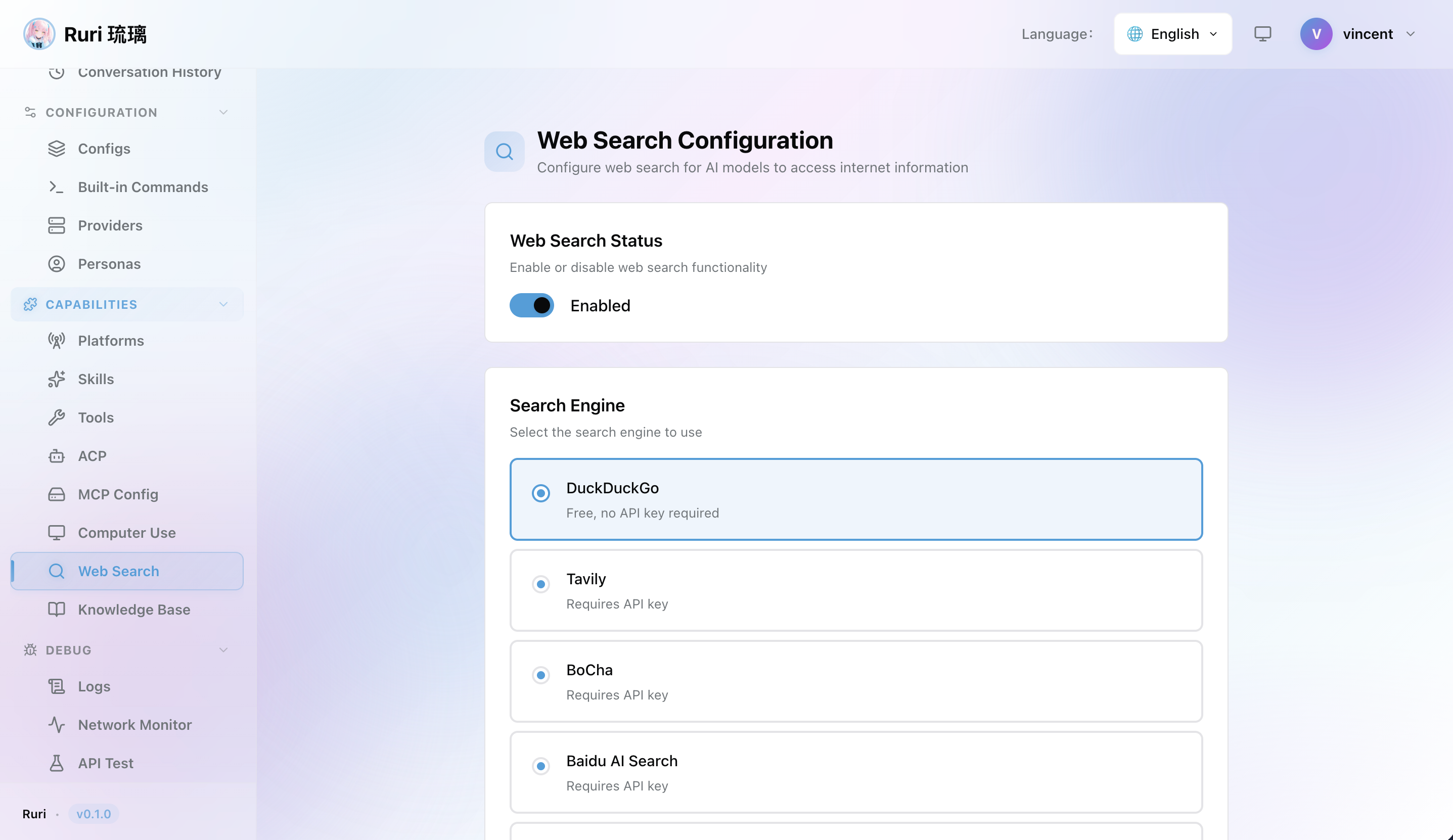
Step 1: Configure Web Search Settings
- Go to Web Search in the sidebar
- Choose a search engine (see options below)
- If required, enter your API key
- Set the maximum number of results (default: 10)
- Toggle Web Search on
- Save the configuration
Step 2: Enable in Your Config Profile
Web Search can be controlled per Config Profile. Make sure it's enabled in the profile you're using.
Supported Search Engines
| Engine | API Key Required | Description |
|---|---|---|
| DuckDuckGo | No | Free and private search engine, no setup needed |
| Tavily | Yes | AI-optimized search engine built for agents |
| BoCha | No | Search engine optimized for Chinese content |
| Baidu | No | China's largest search engine |
| Brave | Yes | Privacy-focused search engine |
DuckDuckGo (Recommended for Quick Start)
DuckDuckGo is the easiest option — no API key required, just toggle Web Search on and you're ready to go.
Tavily
Tavily is designed specifically for AI agents and provides high-quality results:
- Sign up at tavily.com to get an API key
- Enter the API key in the Web Search settings
- Tavily provides a free tier with limited queries per month
BoCha and Baidu
These engines are recommended when searching for Chinese-language content or information from Chinese sources.
Brave Search
Brave Search provides privacy-focused results:
- Sign up at brave.com/search/api to get an API key
- Enter the API key in the Web Search settings
How It Works
When Web Search is enabled, the AI can automatically decide to search the web when your question requires current information. Here's what you'll see:
- You ask a question — For example, "What's the latest version of React?"
- The AI decides to search — A tool call appears showing the search query
- Results are returned — The AI reads the search results
- The AI responds — It uses the search results to give you an informed answer
提示
You don't need to tell the AI to search — it decides automatically when web information would be helpful.
Practical Examples
Current Events
User: "What happened at the latest tech conference?"
AI: [Searches the web] → Returns current news about the event
Software Versions
User: "What's the latest stable version of Rust?"
AI: [Searches the web] → Returns the current version number and release date
Troubleshooting
User: "I'm getting this error: [error message]"
AI: [Searches for the error] → Finds relevant solutions and workarounds
Research
User: "What are the best practices for microservices in 2024?"
AI: [Searches for recent articles] → Summarizes current best practices
Managing Web Search
Via Web UI
- Go to Web Search in the sidebar
- Toggle Web Search on/off
- Change the search engine
- Update API keys or other settings
- Adjust the maximum number of results
Per-Profile Control
Use Config Profiles to control Web Search for different scenarios:
- Coding profile — Web Search enabled for looking up documentation
- Casual profile — Web Search disabled for faster responses
- Research profile — Web Search enabled with Tavily for high-quality results
Tips
- Start with DuckDuckGo — No setup required, good enough for most use cases
- Use Tavily for better quality — If you need more accurate and relevant results
- Monitor API usage — Some search engines have usage limits on free tiers
- Combine with Knowledge Base — For the best results, use Web Search alongside your Knowledge Base
- Adjust max results — More results = better coverage but slower responses. Start with the default (10) and adjust as needed